You want to try Minecraft Education. Here's how to actually get started.

01 Sep 2026 Minecraft Education banner reads "Welcome Everyone!"

Welcome back to school, teachers! For those of you just getting started with Minecraft Education, we wanted to make it easier to kick off your school year. This is the first in a series of posts to help get you building.

Maybe you've heard of Minecraft Education through a colleague. Maybe you're hearing your students talk about it, or had a question about it from a parent. Or maybe you're a long-time player looking to get your classroom set up.

Getting Minecraft Education into your classroom involves a few people beyond the teacher. So here is the whole picture to get you up and running.

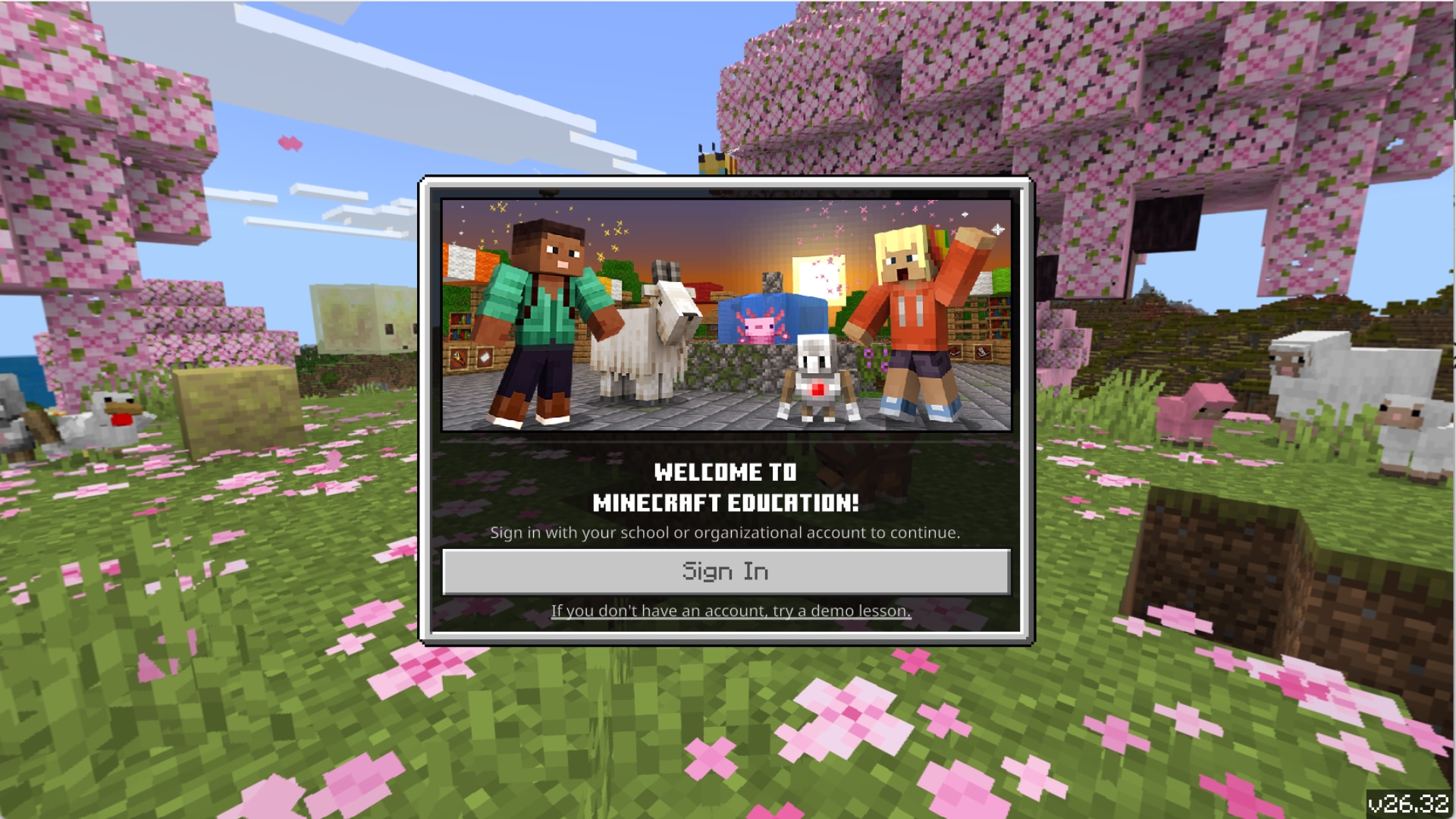
Minecraft Education Edition sign-in screen over a cherry blossom landscape, with Minecraft characters, animals, flowers, and pink trees.

First: your school probably has to turn it 

Minecraft Education uses your school Microsoft 365 account, the same one you use for email. That's good news for your students, because it means they don't need their own Minecraft accounts and their work stays inside your school's environment. But it also means your access is something your school switches on for you, not something you can set up by yourself over a prep period.

Getting access to Minecraft Education comes down to two things: your school having purchased a plan that includes Minecraft and your IT admin having assigned you a license. Minecraft Education, including the Code Builder feature, is included with most Microsoft 365 Education subscriptions, so many schools already have it and simply may not have turned it on yet. Some other education plans do not include it. The names are very similar, so this is not something you can eyeball from your login screen, and there is no need to guess. Your IT administrator can check in a minute or two.

What to ask your IT administrator for

There are four things your IT team handles, and knowing all four means you can ask once instead of going back and forth. They need to:

  1. Confirm your school's licensing
  2. Assign Minecraft Education licenses to you and your students
  3. Install the app on your classroom devices
  4. Allow the services Minecraft Education uses through the school network filter

That last one is the tricky one: everything can look correctly installed and still fail to connect if the network is blocking it.

It does help to name all four at once, so here is language you are welcome to copy into an email.


Hi [Beloved IT Administrator's Name]

I would like to use Minecraft Education with my [subject or grade] class this term. This is a safe, creative learning platform licensed through Microsoft.

I understand there are some things to activate on your side: confirming whether our current Microsoft 365 Education licensing includes it, assigning licenses to me and my students, installing the app on our classroom devices, and allowing the required addresses through our network filter. Minecraft Education publishes setup and deployment documentation for admins at edusupport.minecraft.net. Could you let me know what is involved and roughly how long it might take? Happy to start with just my one class as a trial.


While you wait, get comfortable

Here is the good news: some of the most useful preparation does not require the app at all. If you have not been able to sign in yet, you can spend that time exploring how to use Minecraft Education in your teaching environment. 

Browse the lesson library on our website, a repository of hundreds of free, standards-aligned lessons ready to teach with Minecraft Education. You can even design your own lesson using the Microsoft 365 Copilot Teach module!

The Learn to Play videos walk through game settings, worlds, and navigating the library, and watching them costs you nothing but a lunch period. And you can join the Teachers' Lounge anytime to meet fellow educators around the world and hear how others are using Minecraft in their schools, classrooms, and beyond.

Once you have access to Minecraft Education, we recommend starting with the Minecraft Teacher Academy. It is a free, online, and self-paced training series, built around three, one-hour sessions you can work through on your own schedule or with colleagues during a PD day. . If AI literacy is on your radar this year, there is also a free sixty-minute course on teaching it with Minecraft Education, which comes with teaching resources, assessment rubrics, and a certificate when you finish.

Start with one lesson, not a curriculum

When your access is live, there's no need to completely redesign your unit around Minecraft Education or build an entire term's worth of lessons. Pick a single ready-made lesson from the lesson library that maps to something you were already going to teach. Run it once. Notice what your students do with it and what you would change. You can truly make Minecraft Education your own.

It also helps to decide in advance what you want to collect from students, whether that is a screenshot, a build, or a short written reflection. Having one concrete artifact makes the lesson easier to assess, and it gives you something to show the colleague down the hall who asks what you have been up to.

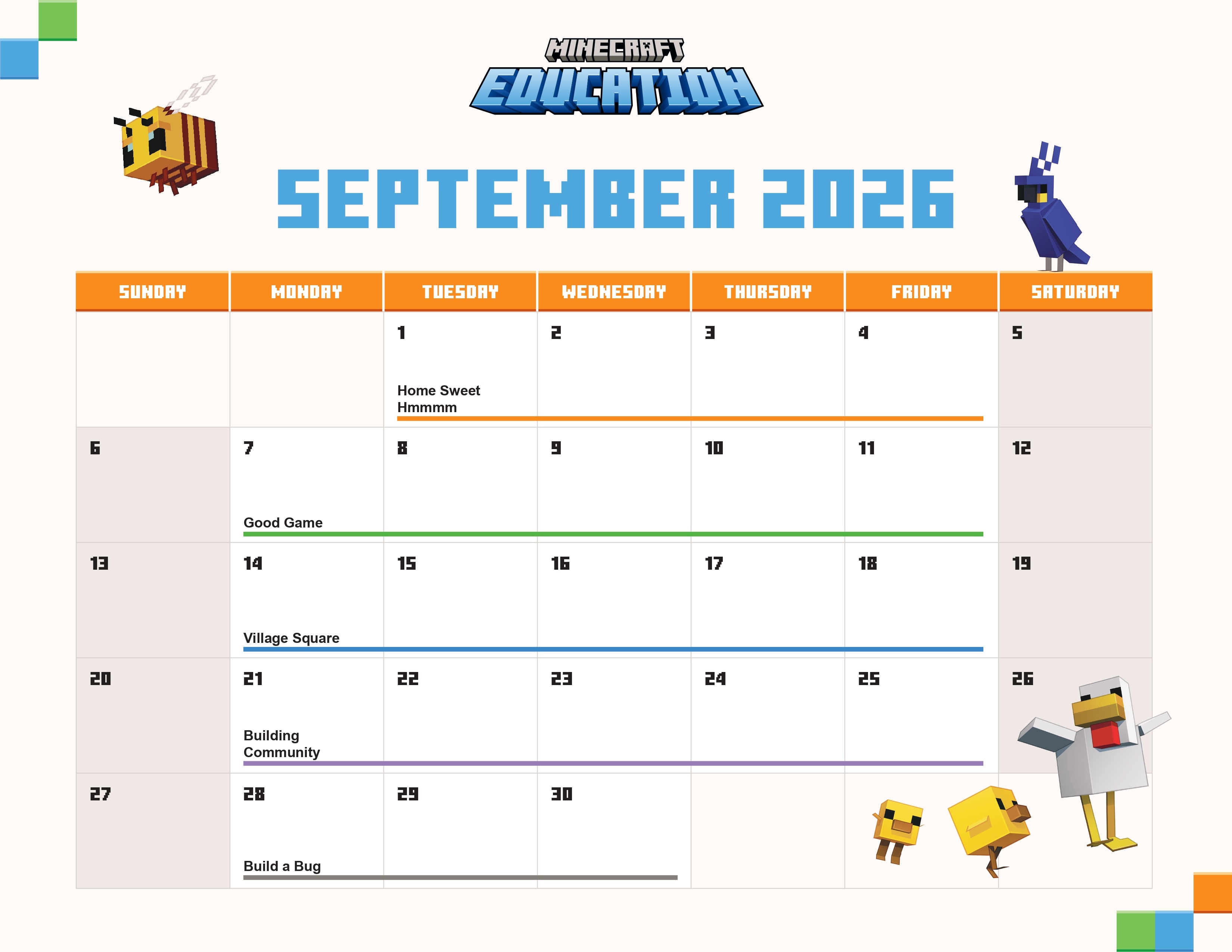
If you'd like a place to start, we have put together a printable September calendar to go with this post. It has suggested lessons for the start of the year to get you started. There’s also a blank version for the month of September if you want to do your own thing (or just have a cool Minecraft Calendar to hang in your classroom). Print it, mark it up, stick it on the wall by your desk.

Colorful Minecraft Education September 2026 calendar with themed weekly activities, orange headers, and pixel-art characters on a clean grid.

You are genuinely not doing this alone

The single best thing you can do right now, before licensing, before installation, before anything, is join the Minecraft Teachers' Lounge. It is a community of educators who have all been exactly where you are, including the part where the sign-in screen would not cooperate. Someone in there has had your exact problem with your exact device setup, and they are usually happy to say so. If you run into a technical issue that your IT team cannot resolve, the Minecraft Education support forums connect you directly with the support team.

Getting set up takes a few conversations. It does not take a technical background, and there are lots of resources to help you out. We will be with you all the way!